
Guide: Remote Desktop security
Secure Remote Desktop on a Windows VPS, without locking yourself out
Remote Desktop is how you manage a Windows VPS, and it is also the first thing attackers look for. Securing it well means closing it to the world while keeping it open to you, including on the day your home IP address changes. Here is what to do, in order of how much it helps, and how ServerMaid does it with a safety net.
Part of Server setup, £99 £49.50 per server for twelve months. 30-day money-back promise.
What to do
Six steps, most effective first
- Allow Remote Desktop only from your addresses. Edit the firewall rule for port 3389 so its remote addresses are your home, office and any other place you work from. Everyone else is dropped before they reach the logon screen. This single step stops almost all attacks. It is also the one that locks people out, so read step 6 before you do it.
- Require Network Level Authentication (NLA). In System Properties, Remote, allow connections only with NLA. A caller must authenticate before a session is created, so the logon screen is not exposed and half-open sessions cannot tie the server up.
- Use a long, unique password on every account that can log in. The administrator account is guessed first. Use a password manager, and remove or disable accounts nobody uses.
- Set an account lockout policy. A threshold (say 10 failed attempts), a lockout duration and a reset counter, in Local Security Policy. It slows guessing; the allow list in step 1 is what actually stops it.
- Audit logons. Turn on logon auditing and look at failed logons (event 4625) now and then. After step 1 the log goes quiet, and anything left in it is worth reading.
- Keep a way back in. Most home broadband addresses change from time to time. Before you restrict Remote Desktop, find your provider's web console (the VNC or "console" button in the VPS panel), and consider allowing your provider's whole address block rather than one address.
Changing the port from 3389 only hides the door for a while, and IP-banning tools chase an endless supply of new addresses. For the extra mile, put Remote Desktop behind a VPN or a Remote Desktop Gateway with multi-factor sign-in; that is more to run, but it is the next step for a server that holds sensitive data.
Why people get it wrong
The same job, by hand and with ServerMaid
By hand
- A firewall rule edited over the very connection it can cut
- An address typed wrong, and the only way back is the provider's console
- A home IP that changes next month, with no warning
- Lockout and password policy set on one server and forgotten on the next
- No idea which firewall rules are yours, your provider's or another program's
With ServerMaid
- A Remote Desktop access page listing your places, each with a note
- Your current address is detected and added for you; a list without it is refused
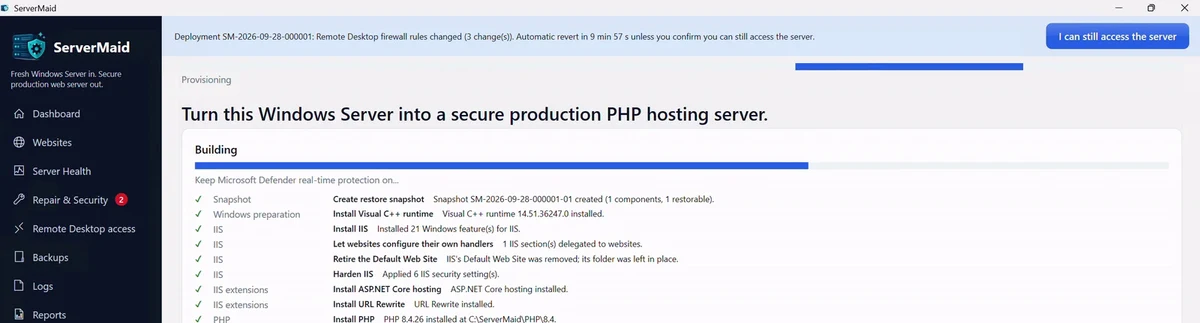
- Every change runs with an auto-revert timer: if you cannot confirm you are still in, it undoes itself
- A warning for home connections, with the option to allow your provider's whole block
- A rescue from your servermaid.com account if your address changes and you are locked out
How it works
Closed to the world, open to you
Add your places
On the Remote Desktop access page, add the address you are connected from (found for you) and any others, each with a note such as "home" or "office".
Apply with a safety net
Tick the confirmation and apply. The firewall changes, and a timer waits for you to confirm you are still connected. No confirmation, no change.
Baseline and watch
NLA, lockout, password policy and auditing come from ServerMaid's security baseline. The health score flags bursts of failed logons and any drift.
Questions about securing Remote Desktop
Is changing the RDP port enough?
No. Scanners find a moved port within days. It reduces log noise a little, but only an address allow list keeps attackers away from the logon screen.
My home IP address changes. Can I still restrict Remote Desktop?
Yes. Allow your provider's whole address block (a /24 or wider) instead of one address, and keep the provider's web console as a fallback. ServerMaid suggests the block and offers a rescue from your account page.
What if I lock myself out anyway?
Use your VPS provider's console to log in locally. Locked out by a firewall rule has the steps. With ServerMaid, changes that affect remote access revert automatically unless you confirm them.
Do I need a VPN or Remote Desktop Gateway?
For most small servers an address allow list plus NLA and strong passwords is enough. A VPN or Gateway with multi-factor sign-in adds another layer for servers holding sensitive data.
Does ServerMaid change my own firewall rules?
No. ServerMaid names its rules so they can be told apart; rules created by you, your provider or other software are left alone.
Remote Desktop closed to the world, open to you
An allow list with a safety timer, a rescue from your account, and a baseline applied for you.